
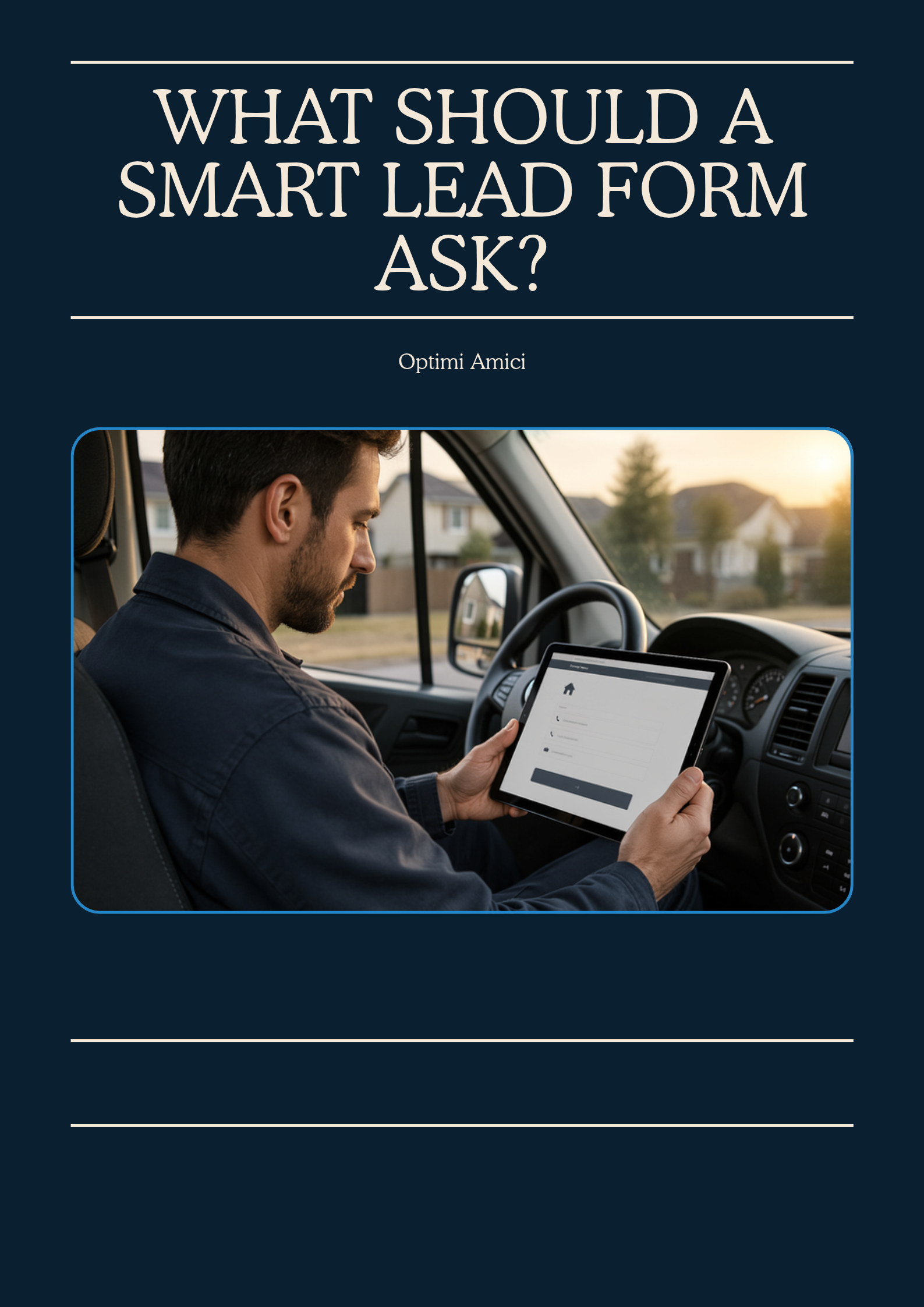
What Should a Smart Lead Form Ask?
A practical guide to the fields a local service business lead form needs, which optional questions are worth adding, and how to keep the form clear, accessible and privacy-aware.
Short answer: A smart lead form for a local service business should ask for three things first: the person's name, a phone number the business can reach them at, and a short description of the job. Add other questions only when the answer genuinely changes how the business responds, and tell visitors why you are asking.
A lead form is not a survey. Its job is to give a busy owner enough context to decide what to do next with an inquiry, without making the visitor give up halfway through. The best forms are short, clearly labelled, and honest about what happens after someone presses Submit.
Why does a local service business need a form at all?
Not every visitor is ready to call. Some are at work, some are comparing options late at night, and some would rather describe the problem in writing. A form gives those visitors a way to start the conversation on their own schedule, and it gives the business a written record of what was asked.
That is why Optimi Amici's Smart Website includes a smart lead form alongside a chat widget and a call button. As described on the Services page, the form is built to "capture a visitor's name, phone number, and job details" so a business can prioritize the right calls instead of chasing incomplete inquiries.
What are the three essential fields?
1. Name
A name lets the business greet the person properly when it follows up and helps match the inquiry to any later call or message. One "Name" field is usually enough. Splitting it into first and last name adds effort without much benefit for most small teams.
2. Phone number
For most local service work, the phone is the fastest way to confirm details, give a rough idea of availability, or book a visit. Label it plainly, and if you also collect email, say which one you will use to follow up.
3. Job details
This is the field that makes the form "smart." A free-text box such as "What do you need help with?" lets the visitor explain the problem in their own words. Add a short hint underneath, for example: "Tell us what is happening, roughly where you are located, and any timing we should know about."
Job details help the business decide whether the request is a good fit, what to bring to a first visit, and how urgent it might be, before anyone picks up the phone.
Which optional fields are worth adding?
Each extra question is something the visitor has to think about. Before adding a field, ask: Will this answer change what we do next? If the answer is no, leave it out.
Fields that often pass that test for local service businesses:
- Service needed (a short dropdown). Useful when a business offers a few distinct services that are handled differently. Keep the list short and include an "Other / not sure" option.
- Location or postal code. Helpful when the business only serves certain areas. Ask for the general area rather than a full street address at the first-contact stage.
- Preferred contact method or time. Useful if the team really can honour the preference.
- Email. Worth including when the business sends quotes or confirmations in writing.
Fields that usually fail the test at first contact: full street address, budget ranges the business will not act on, "How did you hear about us?" as a required field, and anything sensitive that is not needed to respond.
How should the form be designed so people actually finish it?
Good form design is mostly about clarity. A few practical rules, drawn from the W3C Web Accessibility Initiative's guidance:
- Give every field a visible label. The W3C's forms tutorial notes that "most users prefer or even need visible labels to understand the form." Placeholder text inside the box is not a substitute, because it disappears when someone starts typing. (W3C WAI: Labeling Controls)
- Say which fields are required and what format you expect. The W3C recommends indicating "required and optional input, allowed data formats, and timing limitations" in the instructions. (W3C WAI: Form Instructions)
- Let browsers autofill common fields. Marking name, phone, and email fields with the correct input purpose lets browsers fill in saved values, which WCAG notes relieves users from having to type the information. (WCAG 2.2 Understanding 1.3.5: Identify Input Purpose)
- Test it on a phone. Many visitors will fill in the form on a small screen. Check that the fields are easy to tap and that the right keyboard appears for the phone field.
- Confirm what happens next. After submission, show a clear message such as "Thanks, we received your request and will follow up using the details you provided." Do not promise a response time unless the business can reliably meet it.
What should a form say about privacy?
Asking for less is also good privacy practice. In Canada, the Office of the Privacy Commissioner summarizes PIPEDA's limiting-collection principle as: "Collect only the personal information your organization needs to fulfill a legitimate identified purpose." (OPC: Principle 4 – Limiting Collection)
The OPC's consent guidance also asks organizations to make clear "for what purposes personal information is being collected, used or disclosed." (OPC: Principle 3 – Consent) In practice, that means a short line near the Submit button explaining how the information will be used, plus a link to the site's privacy policy. If you want to send marketing messages later, ask for that permission separately rather than bundling it into the inquiry. This article is general information, not legal advice; check the rules that apply to your business and province.
A quick smart-form checklist
- Name, phone number, and job details are the core fields.
- Every optional field changes what the business does next.
- Each field has a visible label; required fields are marked.
- The job-details box has a helpful hint.
- Autofill works for name, phone, and email.
- The form is easy to complete on a phone.
- A short note explains how the information will be used, with a privacy policy link.
- The confirmation message is accurate and does not over-promise.
- Someone on the team checks new submissions on a set routine.
FAQ
How many fields should a lead form have?
As few as the business can work with. For many local service businesses, name, phone, and job details are enough to start a useful conversation. Add fields only when the answer changes your response.
Should I ask for a budget on the first form?
Usually not. If price ranges genuinely decide whether you can take the job, explain your pricing on the Services page instead, or ask about budget during the first conversation.
Is a form better than a phone call?
Neither is better for everyone. Offering a form, a call button, and chat lets visitors choose the option that suits them. Our guide on what to do when you miss a call covers how these paths work together.
Next step
Open your own contact form on a phone and try to fill it in as a customer would. Count the fields, check the labels, and read the confirmation message. If you would like a focused website with a smart lead form built around name, phone, and job details, see what is included on the Optimi Amici Services page or tell us about your business.
Sources
- Optimi Amici Services: Smart Website features, including the smart lead form.
- W3C WAI: Labeling Controls
- W3C WAI: Form Instructions
- W3C: Understanding WCAG 2.2 Success Criterion 1.3.5, Identify Input Purpose
- Office of the Privacy Commissioner of Canada: PIPEDA Principle 4, Limiting Collection
- Office of the Privacy Commissioner of Canada: PIPEDA Principle 3, Consent
Reviewed: November 16, 2026. Product details should be rechecked against the live Services page before reuse.